
This article will go over the minimum requirements for playing Battle Pirates and War Commander, and diagnostics that may be requested by Customer Support.
Acceptable Web Browsers:
Chromium-based browsers are highly recommended.
- Google Chrome
- Opera GX
Can also use :
- ChromiumEdge
- Firefox
Do NOT use
Internet Explorer
Safari
Puffin
Brave
Maxthon
Network Requirements
Browser games require a broadband internet connection (Cable, DSL, Fiberoptic). Satellite, dial-up, and mobile data do not meet our connectivity requirements and are not recommended for gaming.
Download: 3 Mbps or higher
Upload: 1 Mbps or higher
These are the minimum connection requirements to play. If your connection does not meet these standards, you may encounter performance issues during play.
System Requirements
Like all video games, we have minimum system requirements. If your computer does not meet these requirements, you will encounter significant performance issues in the game. Luckily, these requirements are quite modest; most modern laptops and desktops should meet these requirements.
These are the minimum system requirements to ensure a quality play experience. If your system does not meet these requirements, you may encounter technical issues. You can find your system's specs using your DirectX Diagnostic Tool on your PC or the "About this Mac" section on your Mac.
Windows
- 3 Ghz or faster processor for single-core CPUs,
- 2.4 Ghz or faster processor for multi-core CPUs with at least a 4-core processor.
- Windows 10, 11 patched and updated to the latest version
- The most recent version of Google Chrome (recommended browser for best game experience), Mozilla Firefox, Opera GX, Chromium Edge.
- Web browsers should have all extensions removed or turned off during gameplay as these may reduce performance or interfere with the game.
- 6 GB of RAM
- 1 GB of free hard disk space
- 1024 x 768 or larger screen resolution
Mac
- Core Duo 1.33 GHz or faster processor
- Mac OS X 10.8 and above
- The most recent version of Google Chrome (recommended browser for best game experience), Mozilla Firefox, Internet Explorer, or Safari
- Web browsers should have all extensions removed or turned off during gameplay as these may reduce performance or interfere with the game.
- 4 GB of RAM
- 1 GB of free hard disk space
- 1024 x 768 or larger screen resolution
If you are uncertain if your system meets these requirements, you can find out by performing a test called a DxDiag. If you need to send this test result to customer support, just copy and paste the test results into a reply to your support ticket.
How to Find System Information: Windows
You can read about these steps on the Microsoft Support site here.
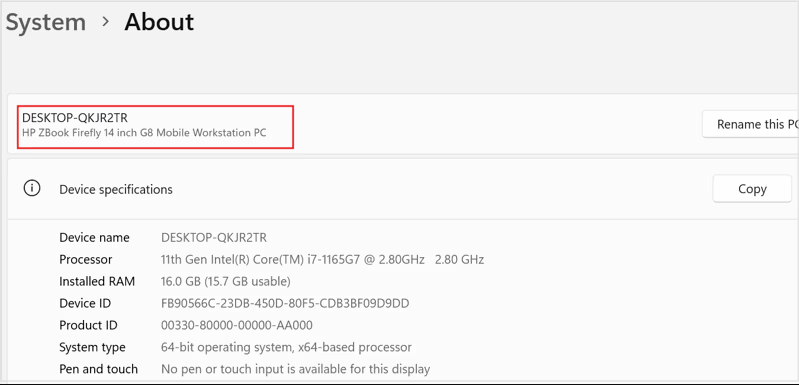
In the Settings app on your Windows device, select System > About.
Right-click on Start and select Settings.
How to Access System Information (Mac "DxDiag")
You can read about these steps on Apple's support site here.
Quick Method:
- Click the Apple icon in the top-left corner and select About This Mac.
- Click the System Report... button in the window that appears
- To view, print, save, or send your report to Apple, do any of the following:
See a longer report: Choose File > Show More Information. The report could be a few megabytes in size.
See a shorter report: Choose File > Show Less Information. The report includes most of the hardware and network information, but leaves out most of the software information.
Print a system report: Choose File > Print.
Save a system report: Choose File > Save, then enter a name and choose a location for the report.
Alternative Methods:
- Hold down the Option (⌥) key and click the Apple Menu, then select System Information.
- Via Terminal: Open Terminal (Applications > Utilities) and type
system_profiler > ~/Desktop/Report.txtto export a full report to your desktop.